Getting Started
Join the PumpSonar Bot on Telegram.
Create or import a wallet to start trading.
/start will open the main menu.
Token Explorer
🔍/token
Gives you a list of filters to explore tokens, for each filter you can set a timeframe and the number of tokens to display
💡 Pro tip
•You can use the advanced search mode to find the next gem. Filter by marketcap, holders, volume, creation date, etc.
•Create your own presets so you do not need to set the criteria everytime.
•You can also share your presets with the other traders and save their presets.
🔥/top_tickers
Displays the top tickers based on a given timeframe.
Monitoring
📋/watchlist
Manage your watchlist.
- →Add / remove a token to your watchlist
- →Share your watchlists with others
- →Access and save a shared watchlist
- →Show saved watchlists
💡 Pro tip
•You can share your watchlists with others.
•You can access a shared watchlist and save them.
🔔/alert
Displays the alerts of a given address.
- →Create price alerts for tokens
- →Alert for new token creation
💡 Pro tip
You can create alert for new token matching keywords.
👀/tracking_management
Manage your user tracking.
- →Track a user
- →Pause tracking
- →Stop tracking
- →See user trades
💡 Pro tip
You can create alert for new token matching keywords.
💰/pnl
Check the PNL of an address based on different timeframes.
💡 Pro tip
•You can generate a chart with your PNL.
•You can view your pnl in details by tokens.
Settings
💼/account
Wallet Management
- •Create / delete / import a new wallet
- •Rename your wallet
- •View your wallet balance
- •Change your wallet password
- •Check your wallet PNL
- •Generate PNL card for a wallet
- •View your wallet PNL in details
Trading Settings
- •Set default wallet
- •Set default amount
- •Create / Manage Stop Loss / Take Profit presets
💡 Pro tip
You can manage multiple wallets easily by giving them names.
Trades
💱/swap
Allows you to buy / sell tokens.
📊/graph
Generate candlestick graphs of a token based on different timeframes.
📋/copy_trading
Let you create and manage copy trading setup.
🎯/sniping
View your sniping orders.
- →Create a new sniping setup
- →List your sniping setups
Balance
💰/balance
Check your wallet balance on PumpSonar.
💡 Pro tip
•You can manage different wallets and check their balance.
•Once you check your balance, you can immediately swap a token or generate a PNL card for the token held.
Viewer
👀/view_trades
View all your past trades on PumpSonar.
👀/view_recurring
View all your recurring orders on PumpSonar.
👀/view_limit
View all your limit orders on PumpSonar.
👀/view_sltp
View all your SL / TP orders on PumpSonar.
💡 Pro tip
In the different commands, you will have menu to manage your opened orders.
Leaderboard
🥇/leaderboard
The leaderboard is established every 24 hours, there are 3 categories that allows any trader to be on the leaderboard.
Leaderboard Types
- 🏅Traders with highest Volume
- 🏅Traders with highest PNL in %
- 🏅Traders with the highest Win Rate in %
🎯 Benefits
If you are on the leaderboard, you will have reduced fees on your trades for a given time.
1st place: Fees reduced from 1% to 0.3%
2nd place: Fees reduced from 1% to 0.5%
3rd place: Fees reduced from 1% to 0.7%
💡 Pro tip
You will receive a notification when you are on the leaderboard and when your fees are reduced.
You will find different buttons to see:
- 1The running leaderboard.
- 2The last leaderboard.
- 3The global leaderboard, by volume and trade count.
- 4Your current ranking and your statistics.
How to ?
💡/how-to
How to use the bot.
❓ How to create a wallet
•You can use use the command /new_wallet.
•You can also navigate to the /account, then Manage Wallets.

❓ How to import a wallet
•Navigate to the /account, then Manage Wallets and you will have a button to import a wallet.
❓ How to place your first trade
❓ How to set Stop Loss / Take Profit on your trades
•In the swap interface, you will see a button Set SL/TP/Expiry.
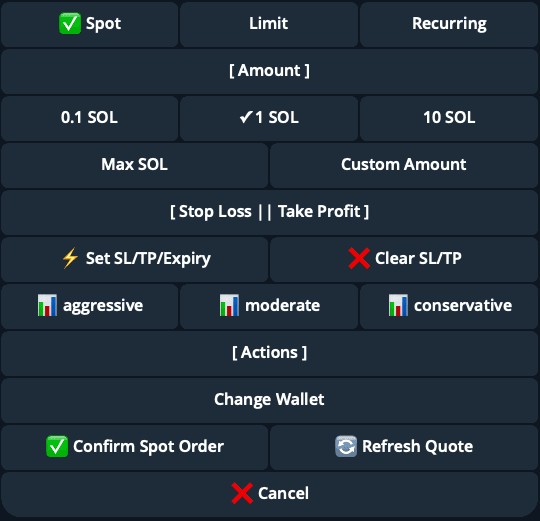
•Once you click on the button, you will see the following interface.
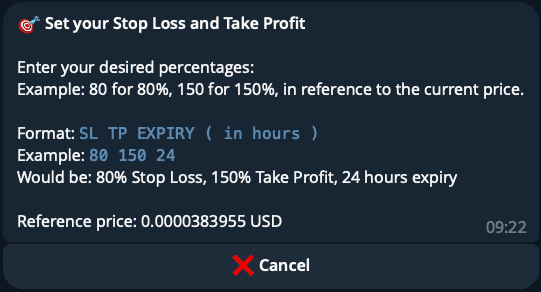
💡 Pro tip
•You can created SL/TP presets in your account.
❓ How to set a recurring order
•In the swap interface, on the top line you can choose the order type and select recurring.
•You can then set the amount you want to trade and the interval.

❓ How to place a limit order
•In the swap interface, on the top line you can choose the order type and select limit.
•You can then set the target price either with percentages button or input custom price.
❓ How to set a copy trading session
•Use the command /copy_trading to open the copy trading interface.

•You can either use the menu New Setup if you know a target address or Find a trader.
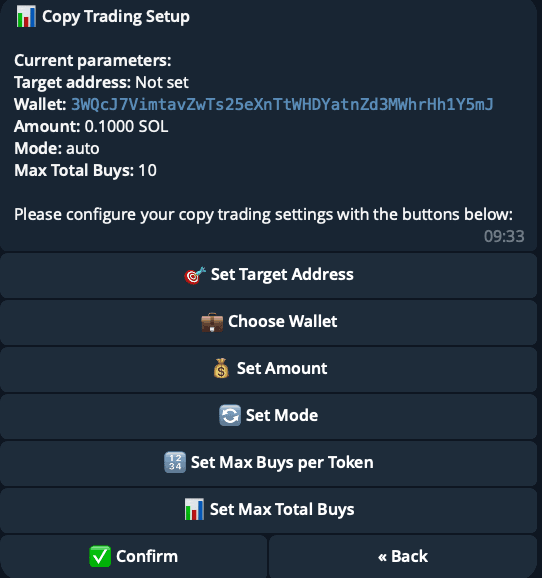
You will have to set the following:
- →Set the target address
- →Choose wallet
- →Set amount
- →Set Mode
- →Set Max allowed buy of the same token
- →Set Max total Buy
•By default, the amount and wallets used are the ones configured in your account setting.
💡 Pro tip
•By default, the mode is set to "Auto", which means that the bot will automatically buy and sell
•You can set the mode to "Buy only", and optionnally couple the trades with SL/TP.
❓ How to set a sniping session
•Use the command /sniping to open the sniping interface.
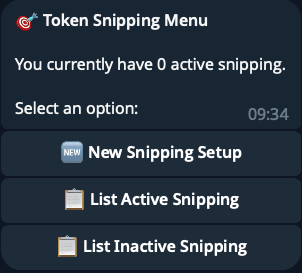
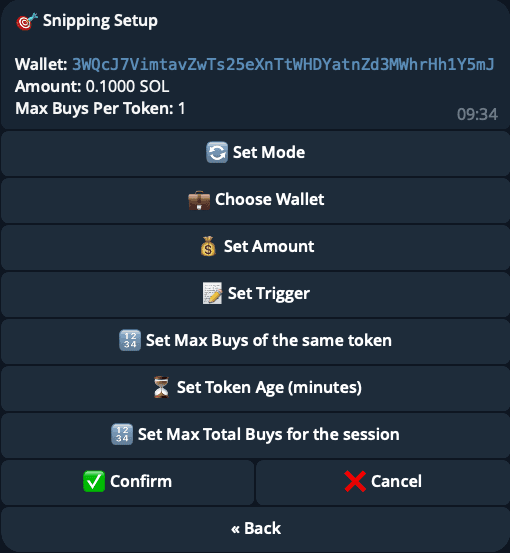
You will have to set the following:
- →Set Mode
- →Choose wallet
- →Set amount
- →Set Trigger
- →Set Max allowed buy of the same token
- →Set Token Age
- →Set Max Total Buys for the session
💡 Pro tip
•By default, the mode is set to "Buy only", which means that the bot will only buy the token.
•You can set the mode to "Auto", which means that you can couple of order with a SL/TP.
•You can set different triggers such as:
- →Graduated tokens
- →Graduating tokens
- →Graduating tokens && set a target amount in Market cap
- →Bounding curve %
Utilities
/ping
Check if the bot is online.
/help
Shows the help message.
/market
Check the current market sentiment.
Support
Need help? Join our community and reach out to the support channel.
Referrals
Get "Blast" by referring a friend.